GTA 6 PS5 60 fps: Så får du smidigare bild via PC med NAIMAN
Lär dig hur du får en smidigare bild av GTA 6 på PS5 med 60 fps med hjälp av NAIMAN-appen och PS Remote Play på en Windows 11-dator. Steg-för-steg-instruktion.
Innehåll 8
Status per 20.11: guide to NAIMAN 0.3.1-preview.1 - a free promptowy.com application. Paths in the PS5 menu and Sony's app are from the official PlayStation manual. I have not yet tested NAIMAN with a real PS5 - if something doesn't work, write, and I will add a fix.
- Använd NAIMAN och PS Remote Play för en smidigare bild av GTA 6 på PS5.
- Du behöver en Windows 11-dator, en DualSense-kontroller och ett grafikkort med Direct3D 11.
- Spelet körs i 30 fps på PS5-konsolen, men bilden blir smidigare tack vare extra bildrutor som genereras av NAIMAN.
To play GTA 6 from PS5 smoother than at 30 fps, you transfer the console's image to a computer via PS Remote Play (or chiaki-ng), and NAIMAN draws a frame between every two real ones and displays the game in full screen. You need a PS5 and a Windows 11 computer on the same network, a DualSense controller on a USB cable, and a graphics card with Direct3D 11. A capture card and RTX are not needed. The whole setup takes three steps, and the game still runs on the console at 30 fps - the image is smoother, not the controller response.
Download NAIMAN for free - promptowy.com/naiman/ →
Windows 11 x64 · one file 0.6 MB · version 0.3.1-preview.1
What you need
- PS5 or PS5 Pro with GTA 6, turned on or in rest mode with network access,
- a Windows 11 x64 computer with a graphics card with Direct3D 11,
- the free application PS Remote Play from Sony or the free client chiaki-ng (chiaki-ng guide),
- a DualSense controller connected to the computer via USB cable,
- an SDR monitor, preferably 60 Hz or more, and a home network - preferably a network cable for the console and computer. Sony recommends at least 15 Mb/s.
Step 1: enable Remote Play on PS5
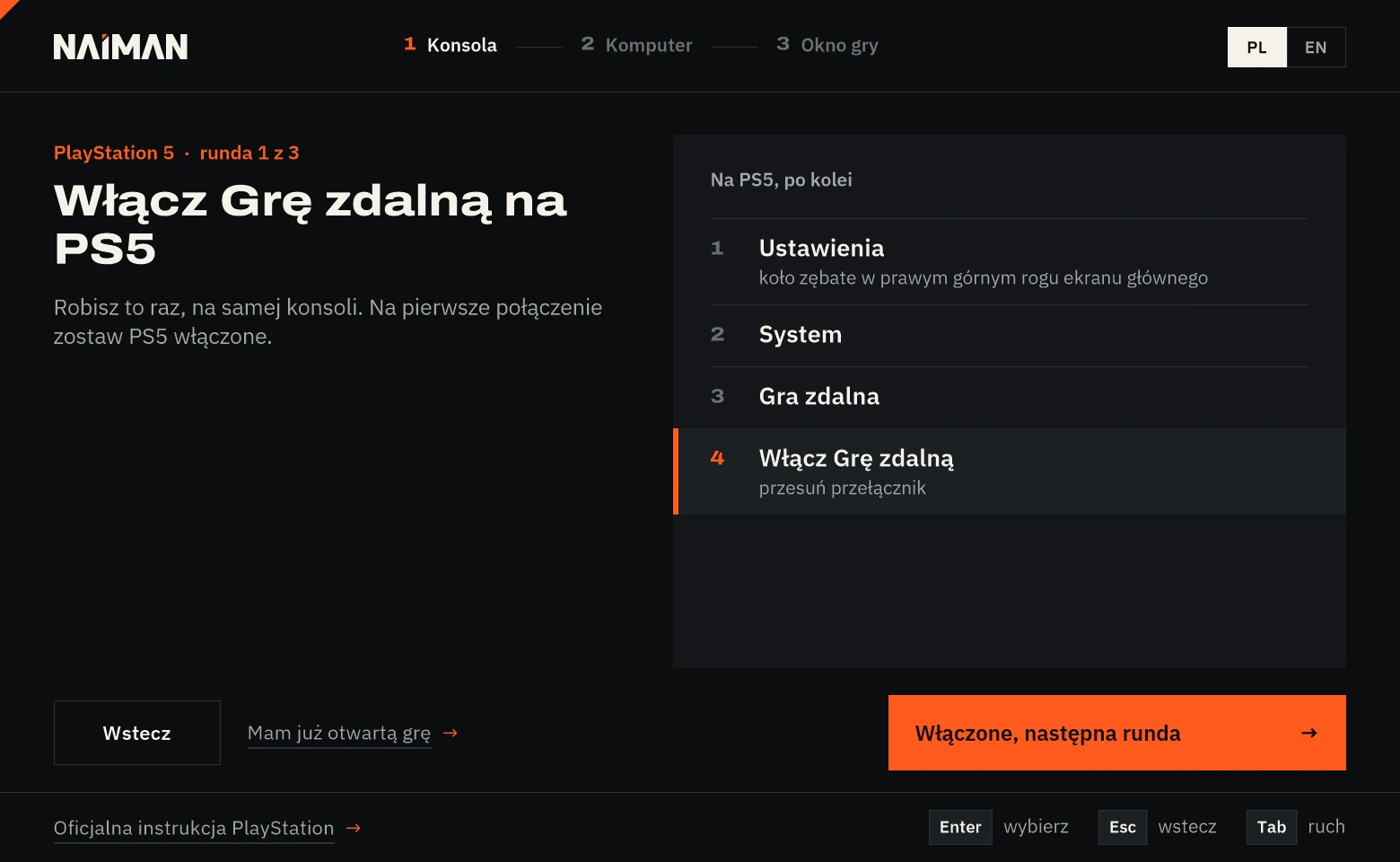
- On the PS5 home screen, open Settings (gear icon in the top right corner).
- Go to System, then Remote Play.
- Toggle the switch Enable Remote Play.
For the first connection, leave the console turned on. Official manual: PS Remote Play on PC.
Step 2: start the stream on the computer
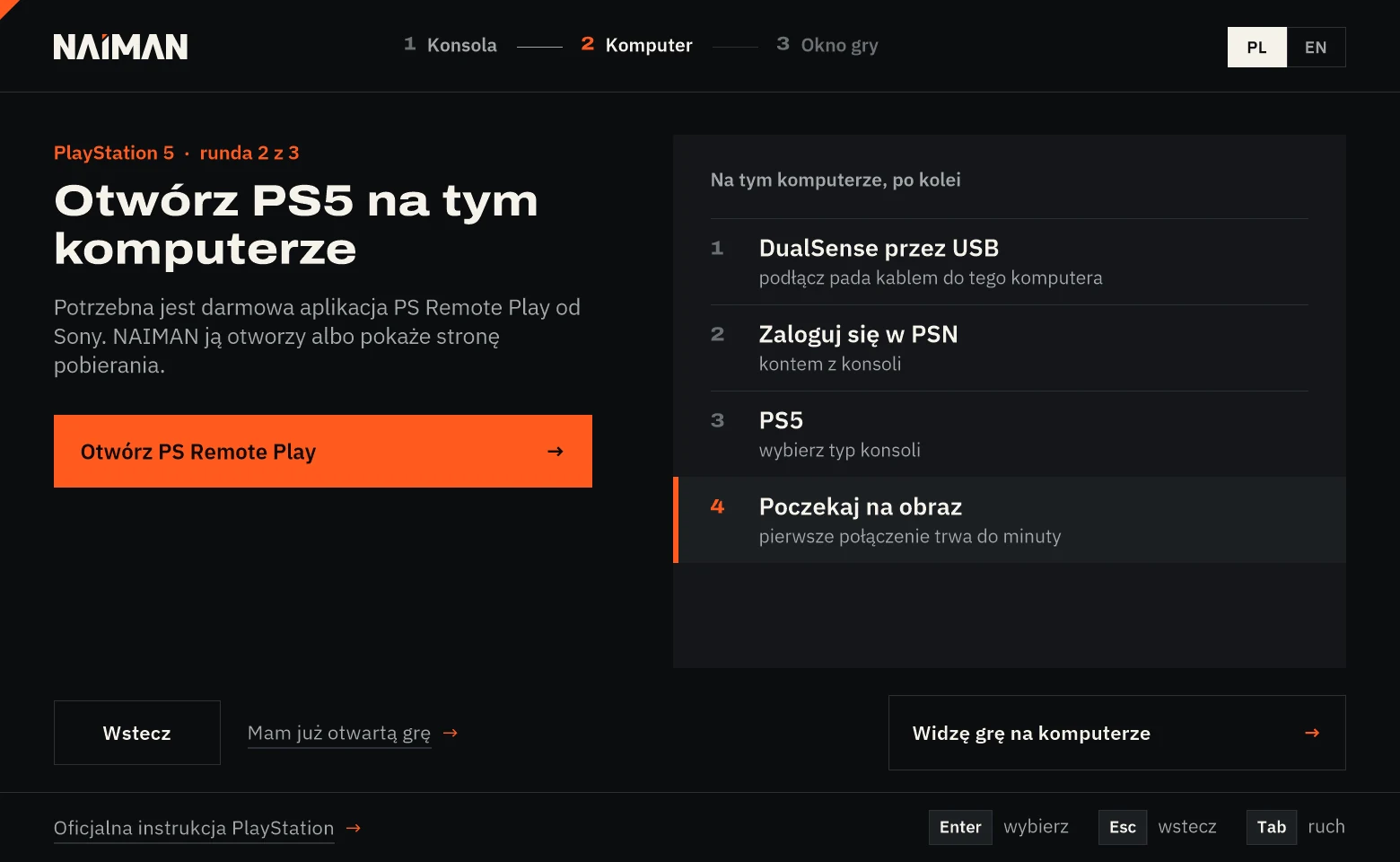
- Run NAIMAN.exe and select PlayStation 5. On first launch, Windows may show a SmartScreen warning because the file is not signed - what to do about it.
- Connect the DualSense controller via USB cable to the computer.
- Click in NAIMAN Open PS Remote Play (or download the app from Sony's website).
- Log in with your PSN account, the same one as on the console, and select PS5.
- Wait for the image - the first connection may take up to a minute. Start GTA 6 with the controller.
Prefer chiaki-ng? It also works - it allows you to manually increase the stream quality. I described the settings in the chiaki-ng guide.
Step 3: select window and play with 2x
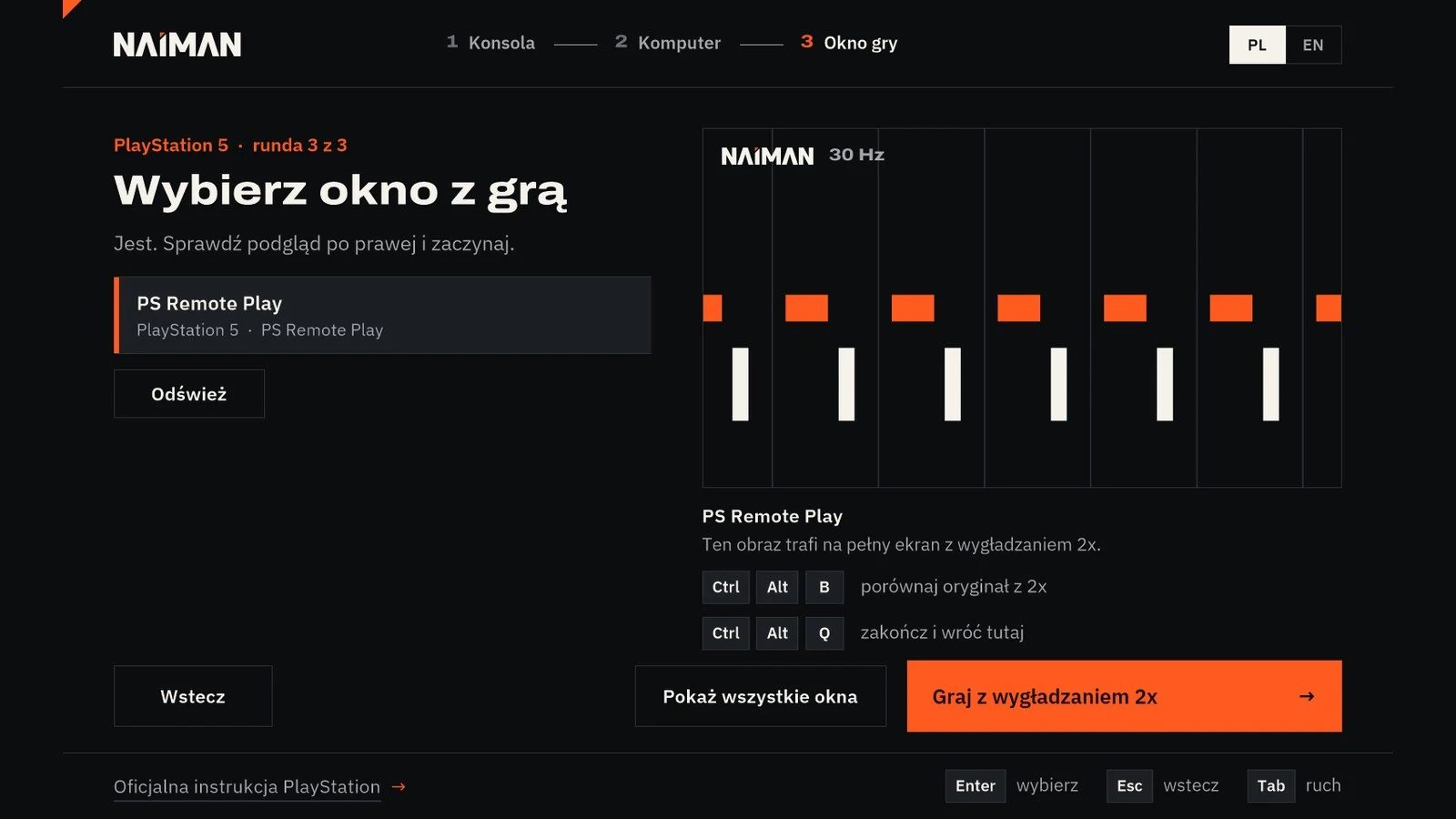
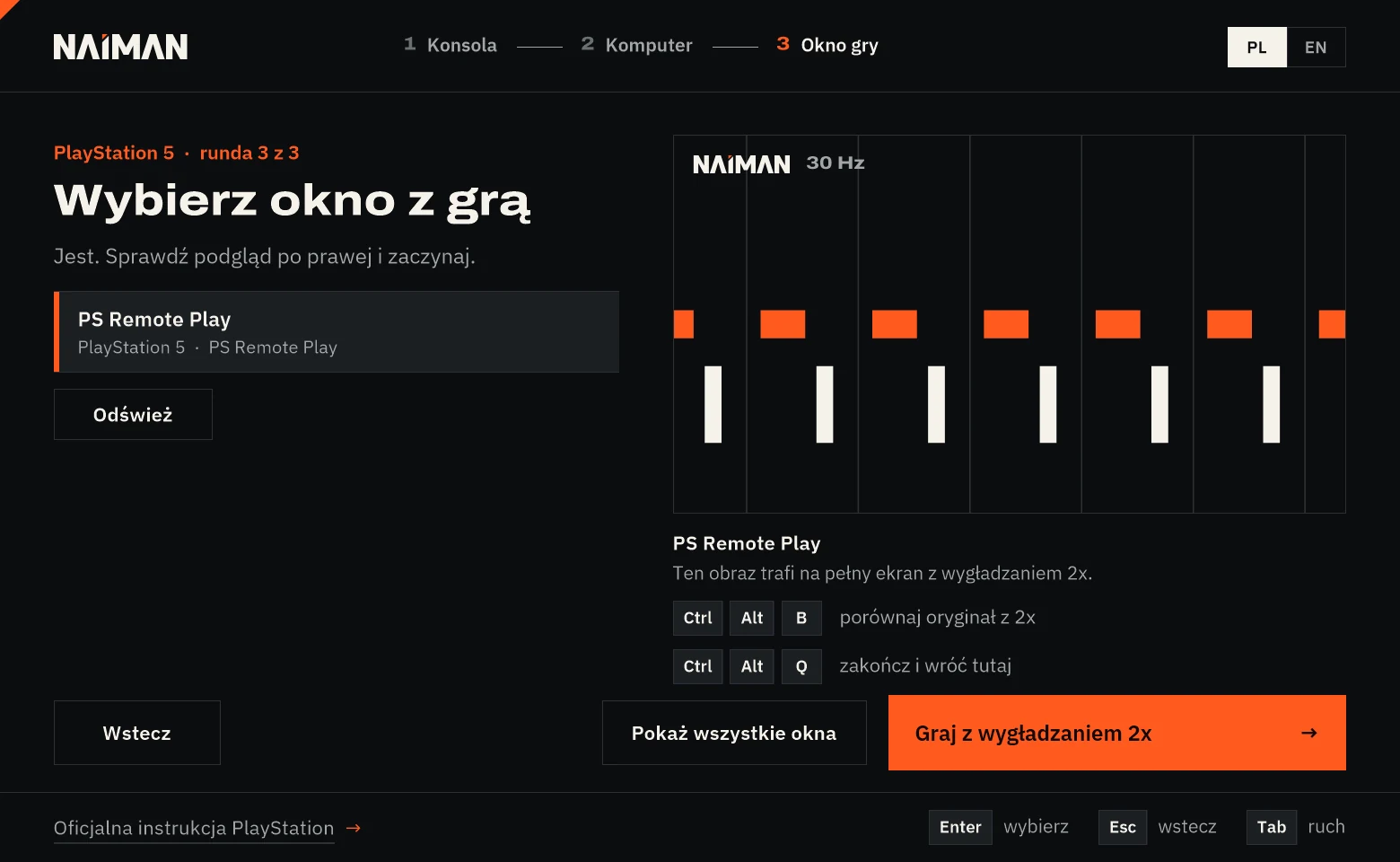
- In NAIMAN click I see the game on the computer.
- The PS Remote Play window is selected directly when only one fits. Check the live preview on the right.
- Click Play with 2x smoothing. The image goes to full screen on this monitor.
Already playing via PS Remote Play? On NAIMAN's first screen select Go directly to the game window and skip steps 1-2.
FPP camera in GTA 6 - cheat sheet in NAIMAN 0.3.1
In the NAIMAN button GTA 6 - FPP camera opens the cheat sheet with buttons, and during the game session on the computer Ctrl + Alt + F it shows or hides it. You change the camera itself with the controller in the game: in pause (Settings > Controls > Controller Functions) set the touchpad to Camera (2/2), in the car, bring up the phone ↑ on the D-pad, hide it with the wheel and immediately click the touchpad. With the image from the HDMI card, the controller can be connected to the console. Full description and display of the surroundings when stationary (L2 + R3): GTA 6 in first person.
During the game
- Ctrl + Alt + B - switches original and 2x. The easiest way to see the difference with your own eyes.
- Ctrl + Alt + Q - exits and returns to NAIMAN.
- Controller stopped responding? Alt + Tab to the PS Remote Play window - the controller controls that window, and the NAIMAN image returns by itself.
NAIMAN shows two counters in the background: frames from the console and generated frames. With fast camera cuts, an intermediate frame can leave a trace - this is typical for all frame generation.
When something doesn't work
- Image stutters or quality drops - that's the stream, not NAIMAN. Connect the console and computer with a network cable, turn off background downloads.
- NAIMAN doesn't see the window - click Refresh or Show all windows. The PS Remote Play window must not be minimized.
- Colors look bad - turn off HDR in Windows for this monitor. NAIMAN works in SDR.
- Game responds with delay - drawing a frame requires waiting for the next real one, so a little delay is always added. NAIMAN's delay has not yet been measured by me. Compare with Ctrl + Alt + B.
Download NAIMAN for free - promptowy.com/naiman/ →
Windows 11 x64 · one file 0.6 MB · version 0.3.1-preview.1
Frequently asked questions
Can I get 60 fps in GTA 6 on PS5?
On the console itself, no - GTA 6 runs on PS5 and PS5 Pro at 30 fps. A smoother image is achieved by transferring the stream to PC and rendering frames, e.g., NAIMAN 2x. Controller response remains as at 30 fps.
Does NAIMAN work with PS5 Pro?
NAIMAN takes the image from the PS Remote Play window or chiaki-ng, so the console model doesn't matter, as long as Remote Play works. I have not yet tested the application with a real PS5 or PS5 Pro.
Do I need a capture card for PS5?
No. The image goes via the home network with PS Remote Play. An HDMI card can be selected in NAIMAN as a third way, but it is not necessary.
Does the controller work via NAIMAN?
The controller supports PS Remote Play or chiaki-ng, not NAIMAN. When the controller stops responding, switch with Alt + Tab to the window of the application from Sony.
Do you have an Xbox? Same guide for Xbox Series X. All ways to get smoother GTA 6: GTA 6 60 fps.
Vanliga frågor
Fungerar NAIMAN direkt med PS5?
Nej, NAIMAN körs på en Windows 11-dator och streamar bilden från PS5 via PS Remote Play eller chiaki-ng. Spelet körs fortfarande på PS5-konsolen i 30 fps.
Behöver jag dyr hårdvara för att använda NAIMAN?
Nej, du behöver en PS5, en Windows 11-dator, ett grafikkort med Direct3D 11, en DualSense-kontroller ansluten via USB och ett stabilt hemnätverk. Ett capture card och RTX krävs inte.
- Hur långt är GTA 6? Speltid för kampanj och 100 procent
- GTA 6 nybörjarguide: Viktiga tips för dina första timmar
- GTA 6 karaktärer och karta: Allt om Lucia, Jason och Leonida
- GTA 6 guide: Storyuppdrag, sidoaktiviteter och troféer
- Black Friday PS5-erbjudanden: PS5 Slim, Xbox Series X och tillbehör i Polen
Inofficiell webbplats, inte ansluten till Rockstar Games eller Take-Two Interactive.
Läs nästa
 GTA 6 · GuideGTA 6 interaktiv karta: utforska Leonida och Vice CityAnvänd vår interaktiva GTA 6 karta för Leonida. Sök platser, växla lager och zooma in på hundratals punkter och samlarobjekt.
 GTA 6 · GuideGTA 6 genomgång: Alla uppdrag uppdelade efter kapitelKomplett GTA 6 walkthrough med alla uppdrag kapitel för kapitel. Följ berättelsen från Prologue till The End of the Road utan onödiga spoilers.
 GTA 6 · GuideGTA 6-recension: Jason, Lucia och livet bortom Vice CityDen långsammare inledningen i the Keys ger utdelning i Leonida, där Jason och Lucia ger Rockstars väldiga värld ett personligt centrum. Omdömet är 10/10.