GTA 6 60 fps PS5: How to Achieve Smoother Gameplay with NAIMAN and PS Remote Play
Learn how to play GTA 6 on PS5 at 60 fps using the free NAIMAN app and PS Remote Play. Step-by-step guide for PC.
Contents 8
As of 11.20: NAIMAN has not yet been tested with a real PS5 - if something doesn't work, write, and I'll add a fix.
- NAIMAN is a free app by promptowy.com that enhances GTA 6 frame rates on PS5 via PC.
- Requires PS5, Windows 11 PC, DualSense controller, and Direct3D 11 graphics card.
- Achieve smoother visuals by streaming PS5 to PC with PS Remote Play and NAIMAN's frame interpolation.
To play GTA 6 on PS5 smoother than 30 fps, stream your console's display to your computer via PS Remote Play (or chiaki-ng), and NAIMAN will draw a frame between every two real ones and display the game full-screen. You need a PS5 and a Windows 11 computer on the same network, a DualSense controller on a USB cable, and a graphics card with Direct3D 11. A capture card and RTX are not needed. The whole setup takes three steps, and the game still runs on the console at 30 fps - the display is smoother, not the controller response.
Download NAIMAN for free - promptowy.com/naiman/ →
Windows 11 x64 · one file 0.6 MB · version 0.3.1-preview.1
What you need
- PS5 or PS5 Pro with GTA 6, turned on or in rest mode with network access,
- a computer with Windows 11 x64 and a graphics card with Direct3D 11,
- the free application PS Remote Play from Sony or the free client chiaki-ng (chiaki-ng guide),
- a DualSense controller connected to the computer via USB cable,
- an SDR monitor, preferably 60 Hz or more, and a home network - preferably a network cable for the console and computer. Sony recommends at least 15 Mb/s.
Step 1: enable Remote Play on PS5
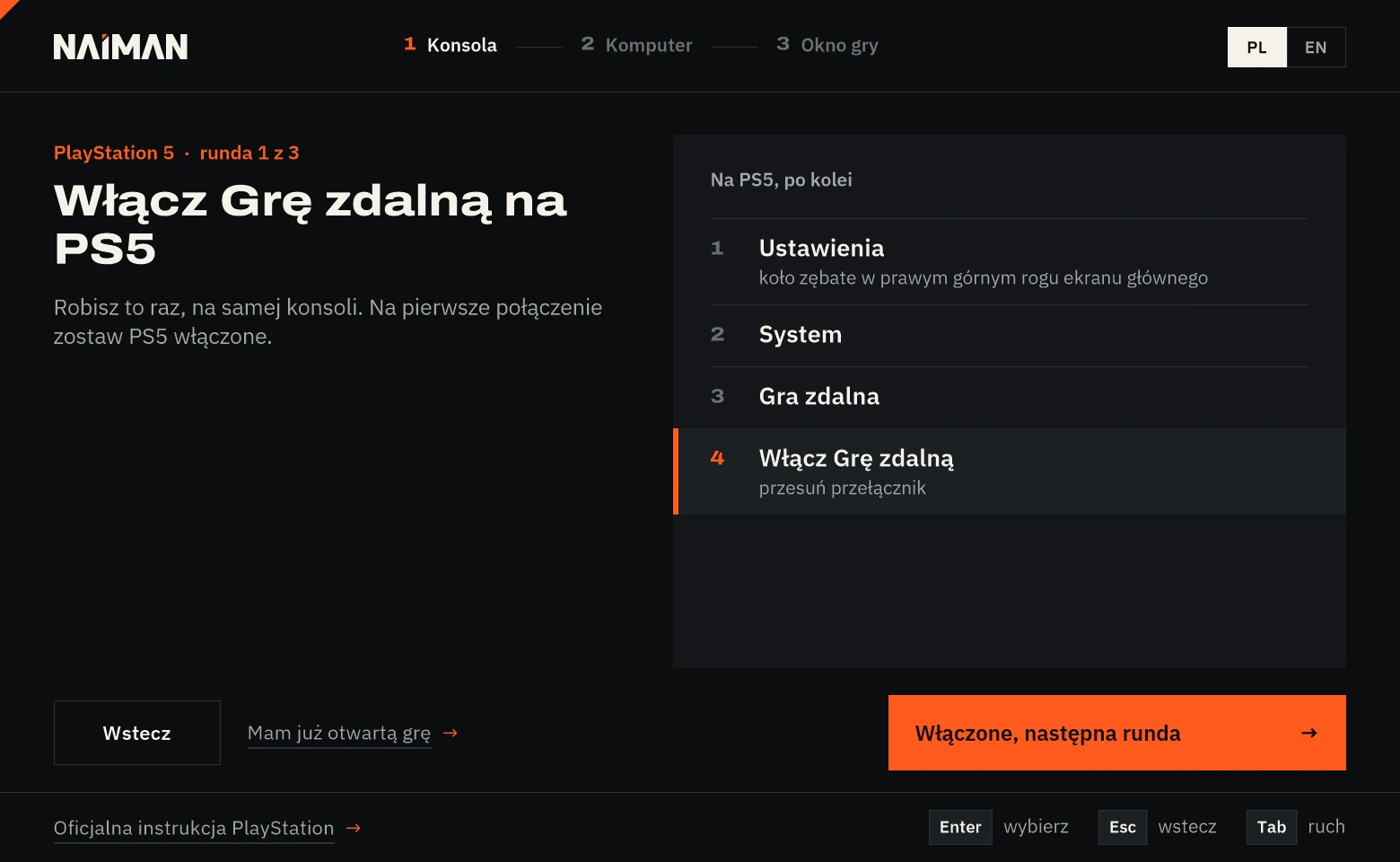
- On the PS5 home screen, open Settings (gear icon in the top right corner).
- Go to System, then Remote Play.
- Toggle the switch Enable Remote Play.
For the first connection, leave the console turned on. Official manual: PS Remote Play on PC.
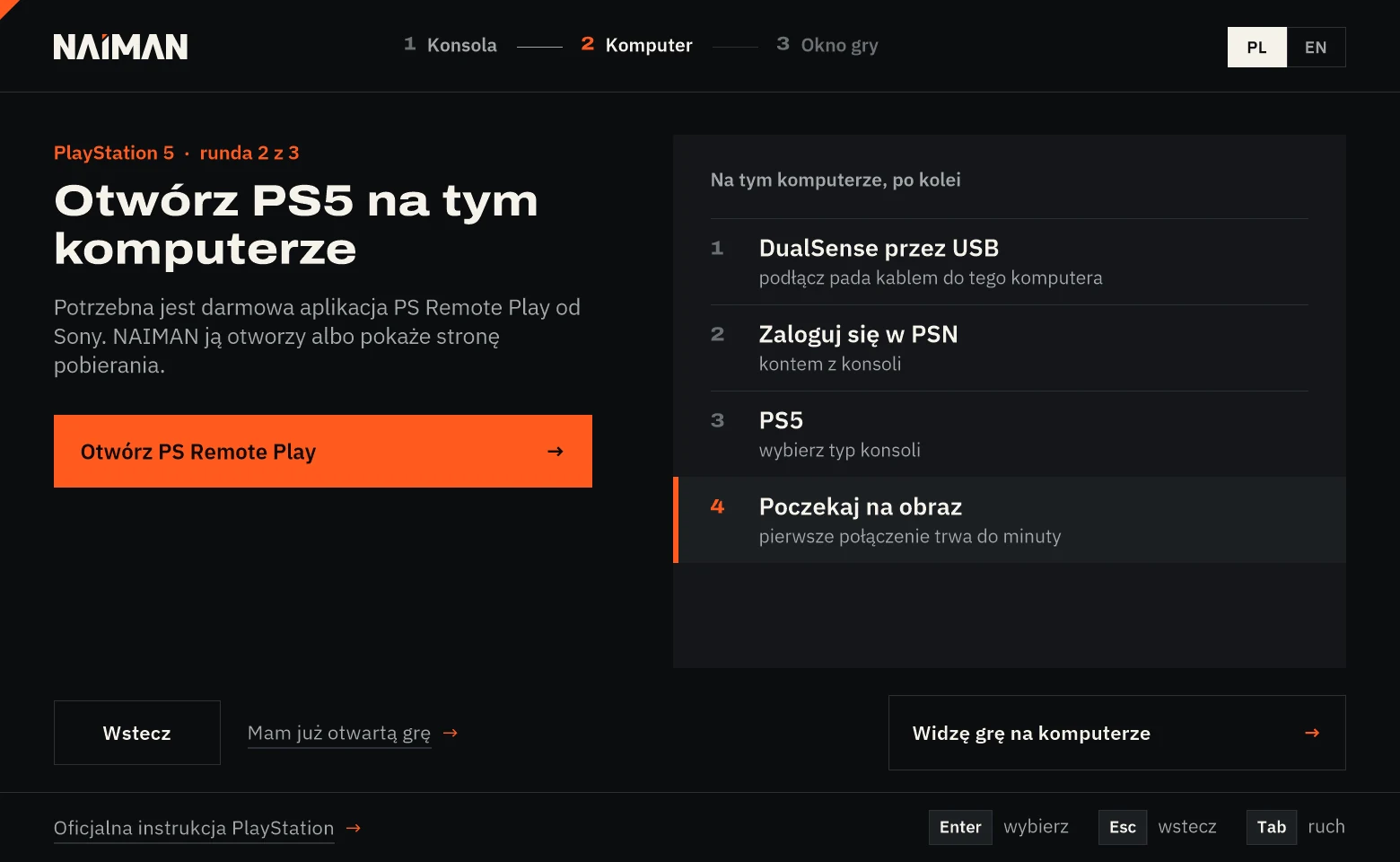
Step 2: start the stream on your computer
- Run NAIMAN.exe and select PlayStation 5. On first launch, Windows may show a SmartScreen warning because the file is unsigned - what to do about it.
- Connect the DualSense controller via USB cable to your computer.
- Click in NAIMAN Open PS Remote Play (or download the app from Sony's website).
- Log in with your PSN account, the same one as on your console, and select PS5.
- Wait for the image - the first connection may take up to a minute. Launch GTA 6 with the controller.
Prefer chiaki-ng? It works too - it allows you to manually increase stream quality. I described the settings in the chiaki-ng guide.
Step 3: select window and play with 2x
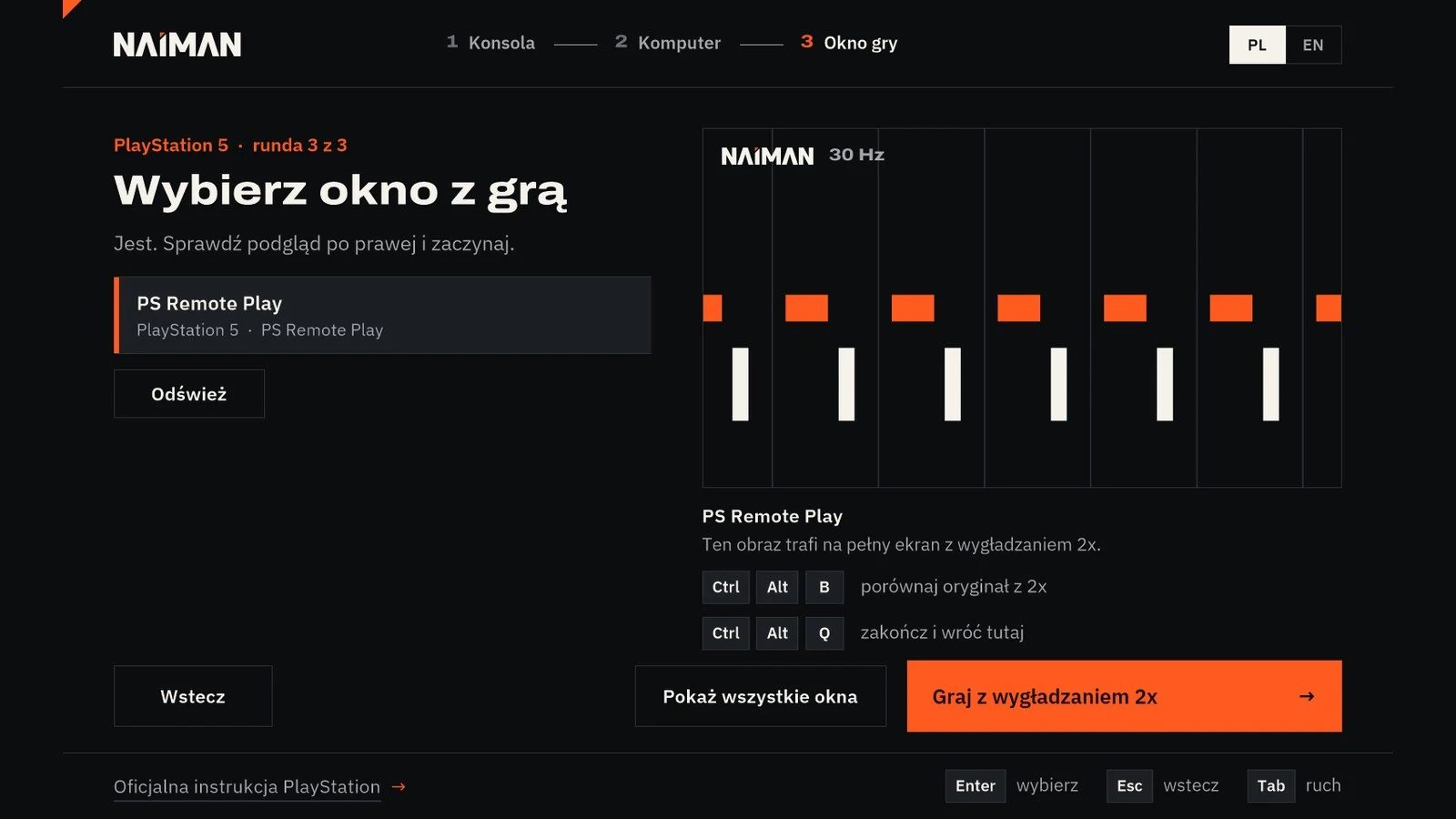
- In NAIMAN click I see the game on PC.
- The PS Remote Play window is selected immediately when only one matches. Check the live preview on the right.
- Click Play with 2x smoothing. The image goes full screen on this monitor.
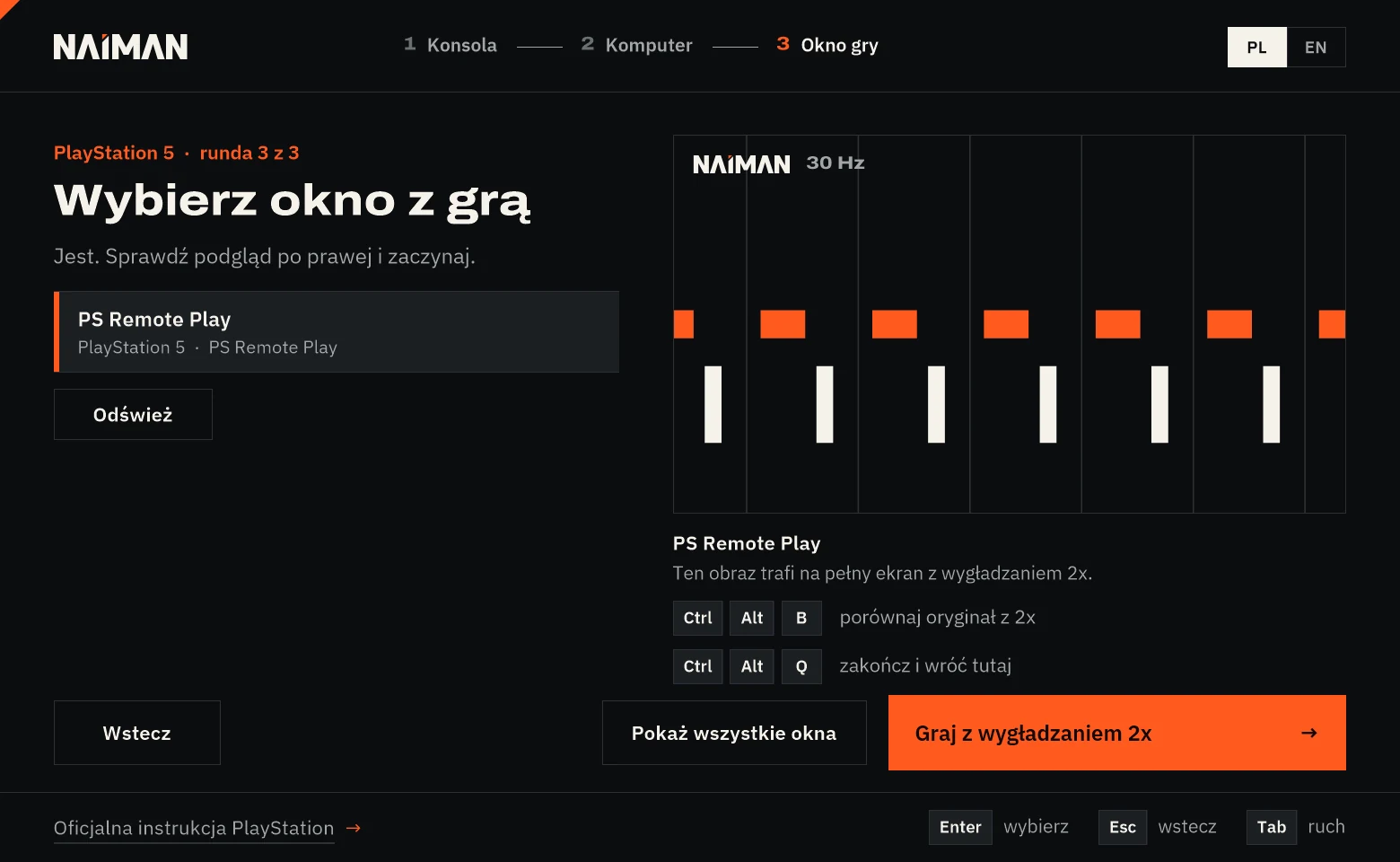
Is the game already running in PS Remote Play? On the first NAIMAN screen, select Go straight to the game window and skip steps 1-2.
FPP Camera in GTA 6 - cheat sheet in NAIMAN 0.3.1
In NAIMAN, the button GTA 6 - FPP Camera opens the button cheat sheet, and during a PC session Ctrl + Alt + F shows or hides it. You change the camera itself with the controller in the game: in the pause menu (Settings > Controller > Controller Functions), set the touchpad to Camera (2/2), in the car, take out the phone using the D-pad ↑, hide it with the wheel, and immediately click the touchpad. With the image from the HDMI card, the controller can be connected to the console. Full description and viewing the surroundings while stationary (L2 + R3): GTA 6 in First Person.
During gameplay
- Ctrl + Alt + B - switches between original and 2x. The easiest way to see the difference with your own eyes.
- Ctrl + Alt + Q - ends and returns to NAIMAN.
- Controller stopped responding? Alt + Tab to the PS Remote Play window - the controller controls this window, and the NAIMAN image will return on its own.
NAIMAN shows two counters in the background: frames from the console and generated frames. With fast camera cuts, an intermediate frame might leave a trace - this is typical for any frame generation.
When something doesn't work
- Image tearing or quality drop - that's the stream, not NAIMAN. Connect the console and PC with a network cable, turn off background downloads.
- NAIMAN doesn't see the window - click Refresh or Show all windows. The PS Remote Play window cannot be minimized.
- Colors look bad - disable HDR in Windows for this monitor. NAIMAN works in SDR.
- Game responds with delay - drawing an extra frame requires waiting for the next real one, so a little delay is always added. We haven't measured NAIMAN's delay yet. Compare with Ctrl + Alt + B.
Download NAIMAN for free - promptowy.com/naiman/ →
Windows 11 x64 · one file 0.6 MB · version 0.3.1-preview.1
Frequently Asked Questions
Is it possible to get 60 fps in GTA 6 on PS5?
Not on the console itself - GTA 6 runs at 30 fps on PS5 and PS5 Pro. A smoother image can be achieved by streaming to a PC and drawing extra frames, e.g., with NAIMAN 2x. Controller response remains as in 30 fps.
Does NAIMAN work with PS5 Pro?
I haven't tested the application with a real PS5 or PS5 Pro yet.
Do I need a capture card for PS5?
No. The image goes through the home network with PS Remote Play. An HDMI card can be selected in NAIMAN as a third option, but it is not required.
Does the controller work via NAIMAN?
The controller is supported by PS Remote Play or chiaki-ng, not NAIMAN. When the controller stops responding, switch Alt + Tab to the Sony application window.
Do you have an Xbox? The same guide for Xbox Series X. All methods for smoother GTA 6: GTA 6 60 fps.
Frequently asked questions
What is NAIMAN and how does it help with GTA 6 on PS5?
NAIMAN is a free app by promptowy.com that interpolates frames to make the image of GTA 6 on PS5 appear smoother, aiming for 60 fps, when streamed to a PC via PS Remote Play. The game itself still runs at 30 fps on the console.
What are the system requirements for using NAIMAN with GTA 6 on PS5?
You need a PS5 (with GTA 6 installed), a Windows 11 PC with a Direct3D 11 graphics card, a DualSense controller connected via USB to the PC, and a home network (wired connection recommended for both console and PC). A capture card or RTX card is not required.
Unofficial site, not affiliated with Rockstar Games or Take-Two Interactive.
Read next
 GTA 6 · GuideGTA 6 Map - Interactive Map of Vice City and LeonidaExplore the GTA VI map by location name or category. Find Vice City, garages, safehouses and collectibles, open a pin and keep track of...
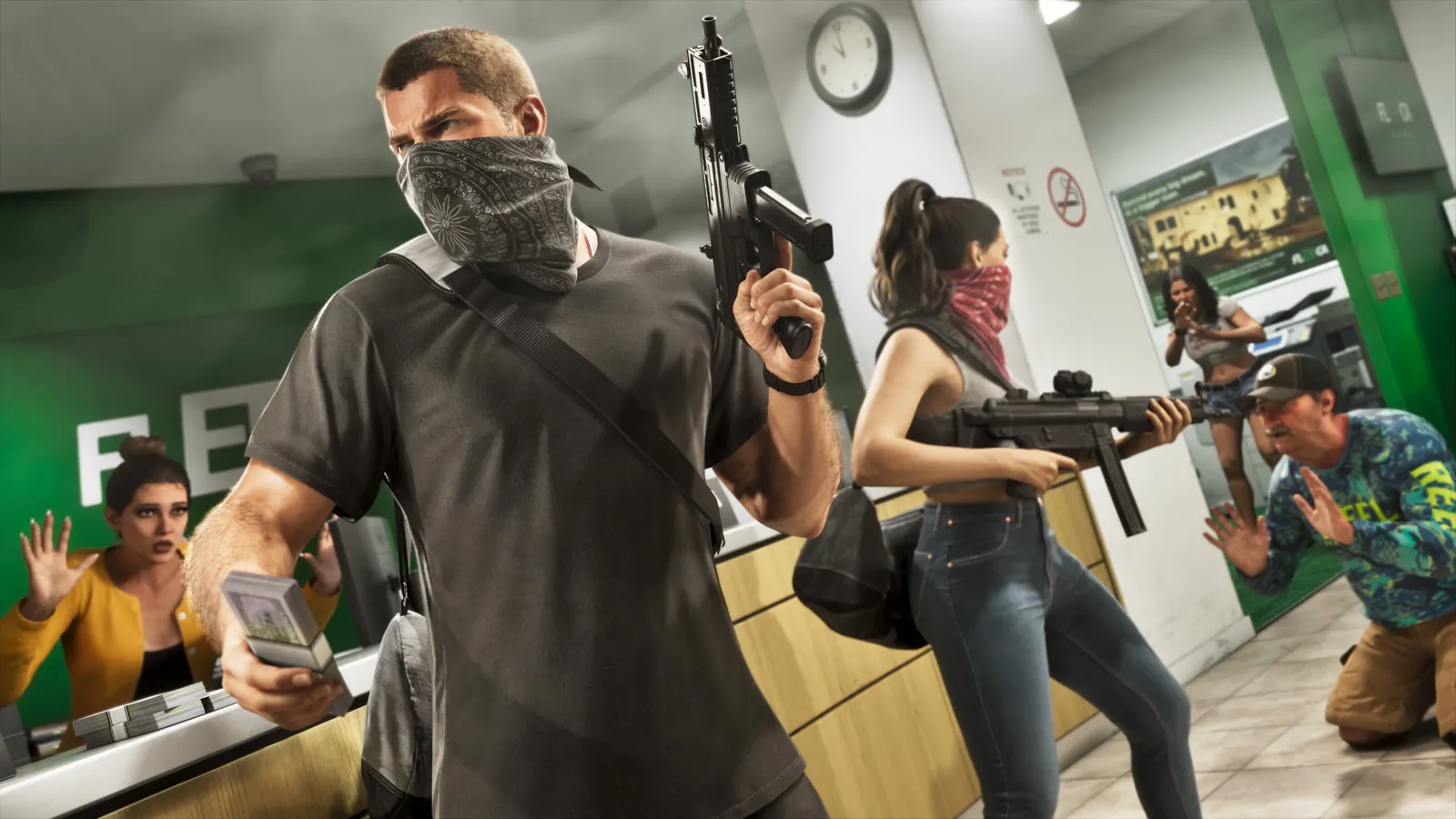 GTA 6 · GuideGTA 6 walkthrough: missions by chapterBrowse the GTA 6 story missions across five chapters. Find your current objective by its in-game title, starting with Lucia in the Prologue.
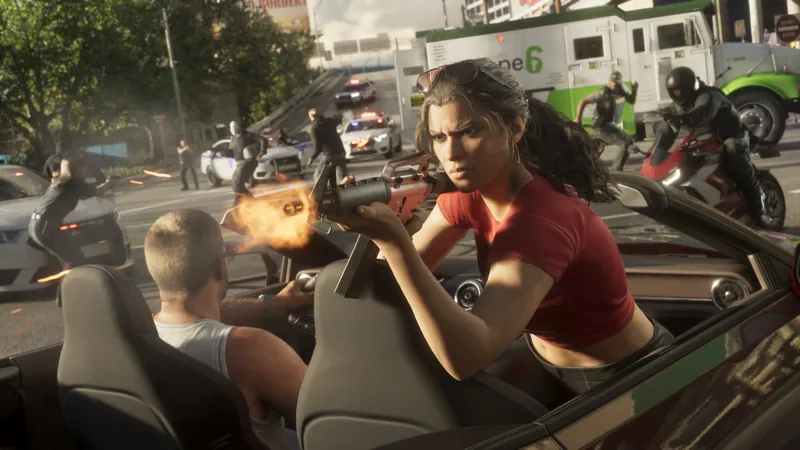 GTA 6 · GuideGTA 6 review: Jason, Lucia and life beyond Vice CityThe slower opening in the Keys pays off in Leonida, where Jason and Lucia give Rockstar’s vast world a personal centre. The verdict is...