GTA 6: Better Motion Blur Settings for Smoother 30 FPS
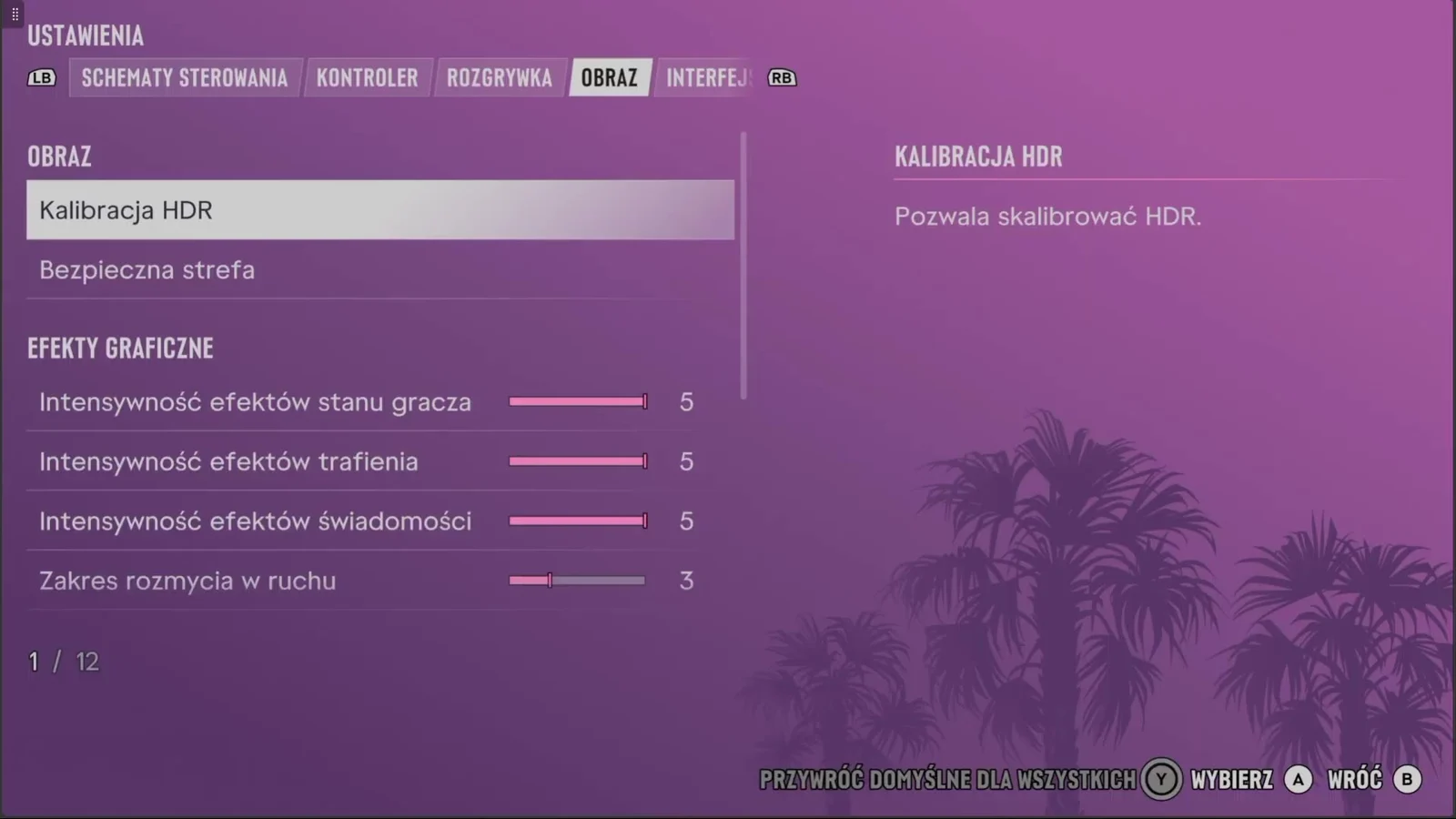
Smoother 30 FPS Camera Pans with Motion Blur
At 30 FPS, each frame stays on screen for about 33 milliseconds, so quick camera turns can look choppy. Increasing motion blur stretches moving elements across frames and makes the motion feel smoother.
Motion blur does not raise frame rate, but increasing the slider from the default 3 to around 7 can make camera sweeps feel more fluid.
- Open the pause menu and select Settings.
- Use the bumper buttons to navigate to the Display tab.
- Scroll down to the Graphics Effects section.
- Find the motion blur slider, which defaults to 3, and raise it to 6 or 7.
- Exit the menu and test the effect immediately.
Finding the Right Motion Blur Value
The default value of 3 gives a clearer image with less blur. Setting it to 5 or 6 is a balanced middle ground, while 7 gives the strongest smoothing effect when driving or viewing the game from farther away on a TV.
Higher settings have drawbacks. Fast camera turns can smear fine detail until the movement stops, and strong blur can make gunplay harder to read. If motion blur bothers you, lower it toward 4 or 5, or move it fully to the left.
Additional Camera, Controller, and TV Tweaks
Beyond motion blur, lowering camera speed in the Camera menu can reduce how abruptly the view jumps between frames. Slightly reducing look sensitivity and look acceleration in the Controller menu can also help. In the Display menu, you can lower the intensity of player status, hit, and awareness effects if the screen feels too cluttered during action. On the display side, keep the TV in Game Mode and avoid motion smoothing or interpolation features, which can add input lag.
In the Display menu, players can also reduce the intensity slider for player status, hit, and awareness effects if screen feedback feels too cluttered during combat. On the display hardware side, always keep the television set to Game Mode. Avoid TV-side motion smoothing or interpolation features, as external processing introduces noticeable input lag to controller inputs.
Step-by-Step HDR Calibration
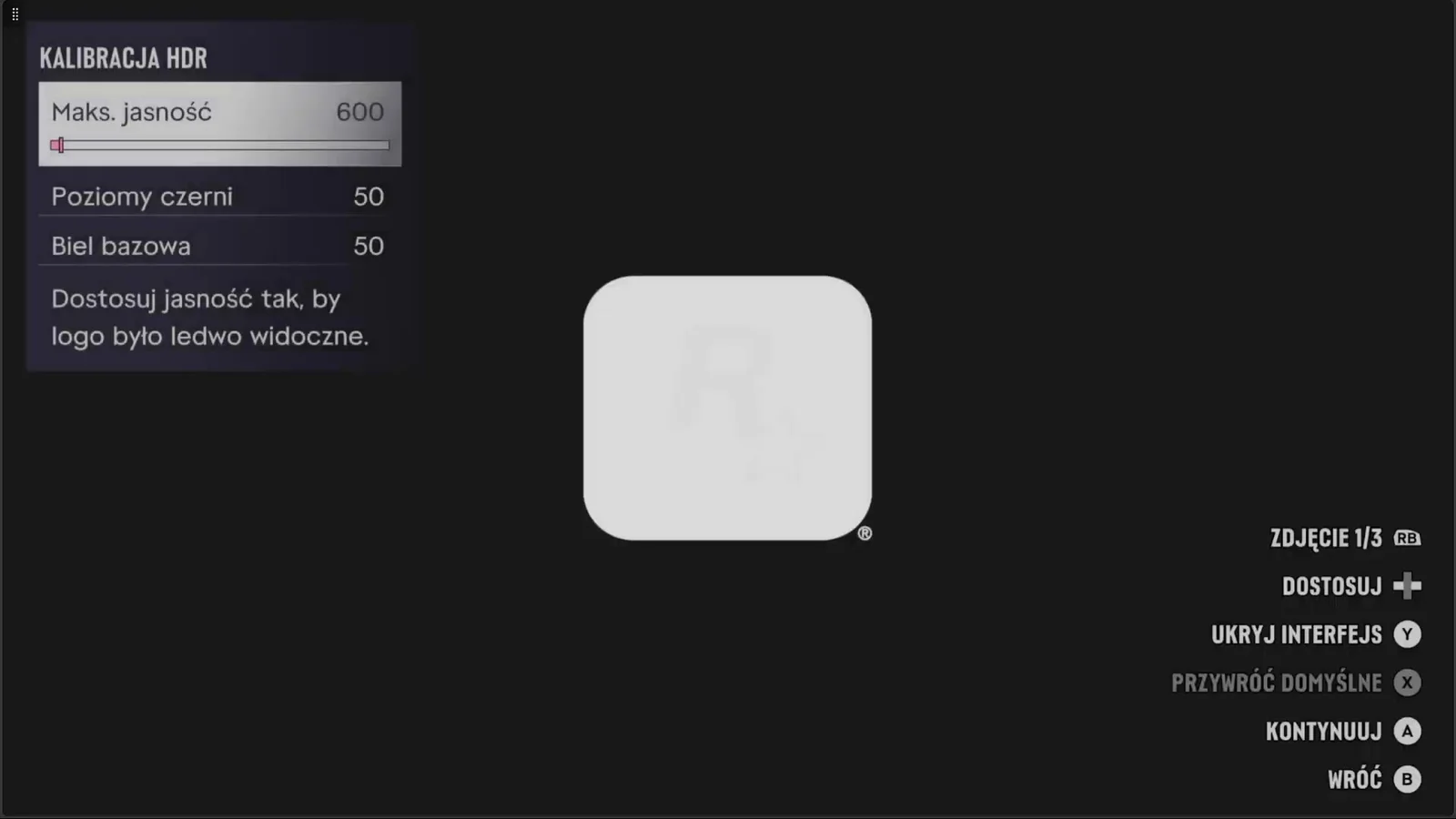
Miscalibrated HDR can crush shadow detail or wash out bright areas. The HDR Calibration menu is at the top of the Display tab and includes three sliders: Maximum Brightness, Black Levels, and Paper White. Press RB to cycle through the three test images, Y to hide the interface, and X to restore defaults.
For best results, calibrate your TV first by enabling Game Mode and HGiG if your set supports it. Next, complete the system HDR calibration tool on your console. Finally, open the game’s HDR menu and adjust Maximum Brightness, Black Levels, and Paper White using the test image as a guide.
Frequently asked questions
Does increasing motion blur add more frames per second in GTA 6?
No. The game still runs at 30 FPS. Motion blur only changes how smooth the motion appears on screen.
Where is the motion blur setting located?
Open the pause menu, go to Settings, choose the Display tab, and then find the motion blur slider under Graphics Effects.
What should I do if the higher motion blur setting causes dizziness or blurry shootouts?
Lower the slider back toward 4 or 5, or move it all the way to the left. You can also reduce camera look sensitivity by 1 or 2 points to make pans less abrupt.
Next guide · GTA 6 on PS5 vs Xbox Series X: Graphics, FPS, and Controller Features