How to Stream GTA 6 from PS5 and Xbox: Three Setups for Twitch and YouTube
Learn how to stream GTA 6 from PS5 or Xbox Series X|S directly to Twitch and YouTube, or route console gameplay through OBS via Remote Play and an HDMI capture card.
Contents 6
Three Ways to Broadcast from Console
With GTA 6 available on PlayStation 5 and Xbox Series X|S and no native PC version, any stream starts from console hardware. You have three main routing methods depending on how much control you want over overlays, audio, and destinations.
- Native console broadcasting is the fastest setup: PS5 can stream from the Create button to YouTube or Twitch, while Xbox supports direct Twitch streaming.
- Using a PC with OBS alongside Remote Play or an HDMI capture card gives you more control over overlays and routing, including multi-platform streaming.
- Disable HDCP on PS5 before using an HDMI capture card, and note that YouTube live streaming may take up to 24 hours to become available on a verified channel.
Direct console broadcasting uses the console itself for encoding and is the quickest option, but it is generally limited to one platform at a time. Remote Play mirrors the game to a PC running OBS, adding software control without extra capture hardware. An HDMI capture card sends the console output to a PC for OBS-based broadcasting and broader streaming setup options.
Direct Broadcasting on PS5 and Xbox
Built-in broadcasting lets you go live quickly using console menus. PlayStation 5 supports direct streaming to both Twitch and YouTube, while Xbox Series X|S supports direct streaming through Twitch and partner apps such as Lightstream and Streamlabs.
On PS5, stream resolution and frame rate settings are in Settings › Captures and Broadcasts › Broadcasts. You can include your microphone, party voice chat, and the official HD Camera. Leaving the game sends viewers to a standby screen, and some game scenes may not be shown to viewers. Xbox users can access live streaming destinations from the guide under Capture & share.
- On PS5, press the Create button on the DualSense controller and select Broadcast.
- Link your YouTube or Twitch account if needed, add a title, and select Go Live.
- On Xbox Series X|S, press the Xbox button, navigate to Capture & share, choose Live streaming, and select your destination under More options.
Streaming Wirelessly via Remote Play and OBS
If you already have a PC and want to use OBS scenes, alerts, or multistream tools without extra hardware, Remote Play mirrors your console display in a desktop window.
PS Remote Play is available as a dedicated app for Windows and Mac, requiring at least 5 Mbps upload/download, with 15 Mbps recommended for better quality. Xbox Remote Play operates through a browser on Windows 10/11 (version 22H2 or newer) and requires at least 10 Mbps download plus a 5 GHz Wi‑Fi or mobile connection. OBS captures the app or browser window as a source.
Hardware Capture Cards and HDCP Settings
An external capture card offers a dependable setup for longer broadcasts. The console sends video via HDMI to the card, which passes the feed to your television while sending a duplicate signal to your PC through USB.
Before routing a PS5 through an external capture card, disable High-bandwidth Digital Content Protection (HDCP). If it stays on, the card can show a black screen in OBS.
- Connect the PS5 directly to a TV and navigate to Settings › System › HDMI.
- Turn HDCP off.
- Run an HDMI cable from the console HDMI OUT port to the capture card HDMI IN port.
- Run a second HDMI cable from the capture card HDMI OUT port to your display.
- Connect the capture card to your PC using USB and add it in OBS Studio as a Video Capture Device.
Pre-Stream Checks and Content ID
Do not wait until launch night to configure your accounts. YouTube requires account verification and may take up to 24 hours to enable live streaming for first-time broadcasters.
In-game car radios can trigger copyright issues and automated stream interruptions. YouTube scans live streams for third-party audio, and matching copyrighted tracks can cause warnings or a broadcast takedown. To reduce risk, lower or mute in-game radio audio in the game settings, or disable VODs and clips if needed.
Frequently asked questions
Can you stream GTA 6 directly from a PC?
No, because GTA 6 does not have a native PC release. A PC can only be used as a broadcast station by capturing the console video output through Remote Play or an HDMI capture card.
Why is the capture card showing a black screen on PS5?
The console most likely has HDCP enabled. Connect the PS5 directly to your TV, navigate to Settings > System > HDMI, turn HDCP off, and reconnect the capture card.
How can you stream GTA 6 to Twitch and YouTube at the same time?
Consoles can only broadcast directly to one platform at a time. To multistream, route your console feed into a PC running OBS Studio, then broadcast through a distribution service like Restream or configure multiple outputs.
Unofficial site, not affiliated with Rockstar Games or Take-Two Interactive.
Read next

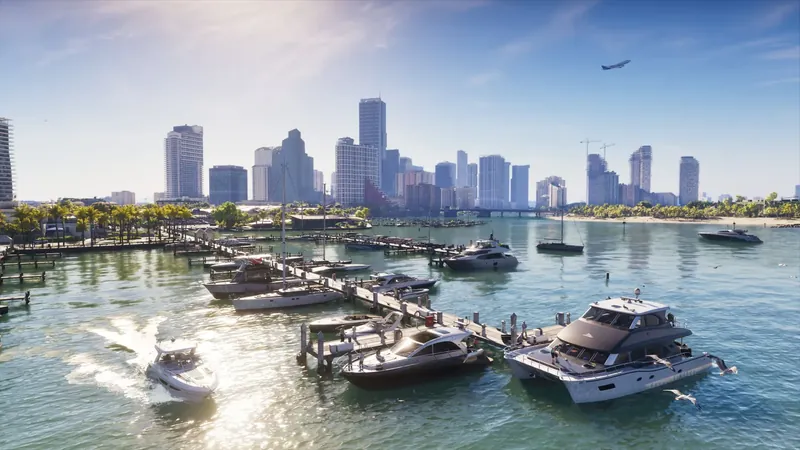 GTA 6 · GuideGTA 6 Map - Interactive Map of Vice City and LeonidaExplore the GTA VI map by location name or category. Find Vice City, garages, safehouses and collectibles, open a pin and keep track of...
 GTA 6 · GuideGTA 6 walkthrough: missions by chapterBrowse the GTA 6 story missions across five chapters. Find your current objective by its in-game title, starting with Lucia in the Prologue.
 GTA 6 · GuideGTA 6 review: Jason, Lucia and life beyond Vice CityThe slower opening in the Keys pays off in Leonida, where Jason and Lucia give Rockstar’s vast world a personal centre. The verdict is...