GTA 6 Trailer Style in AI Video Models: Wan 3.0, Seedance 2.5, and MiniMax Tested
We tested Wan 3.0, Seedance 2.5, and MiniMax H3 using official Rockstar screenshots to compare GTA 6-inspired lighting and camera movement.
Contents 5
Testing AI Video Engines Against the Rockstar Aesthetic
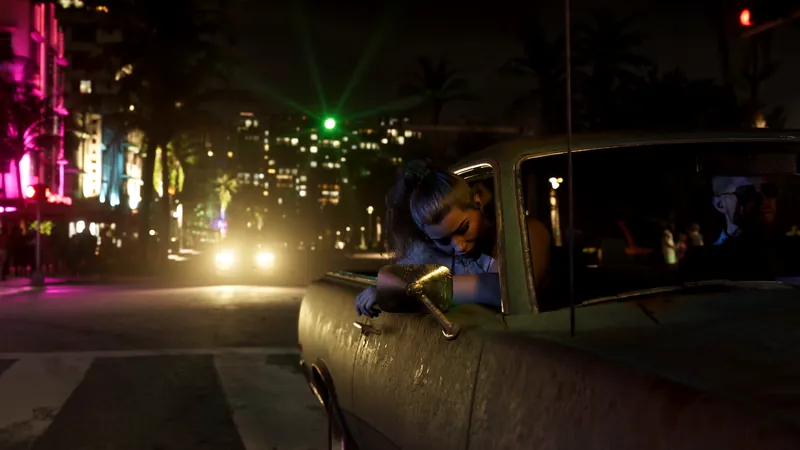
The GTA 6 trailers use a recognizable visual style: golden-hour glare, humid coastal haze, pink and violet gradients, and low camera angles close to the road. To see how closely modern generative tools could match that look, a benchmark was run using a single five-second shot across three models: Wan 3.0, Seedance 2.5, and MiniMax H3.
- Wan 3.0 won the benchmark by matching the pink-and-violet sky tones and executing the full ascending camera move at the lowest cost.
- Seedance 2.5 delivered the sharpest vehicle detail and reflections, but the camera stayed at road level.
- Using official Rockstar screenshots as style references helped transfer the Vice City-style golden-hour haze across AI video tools.
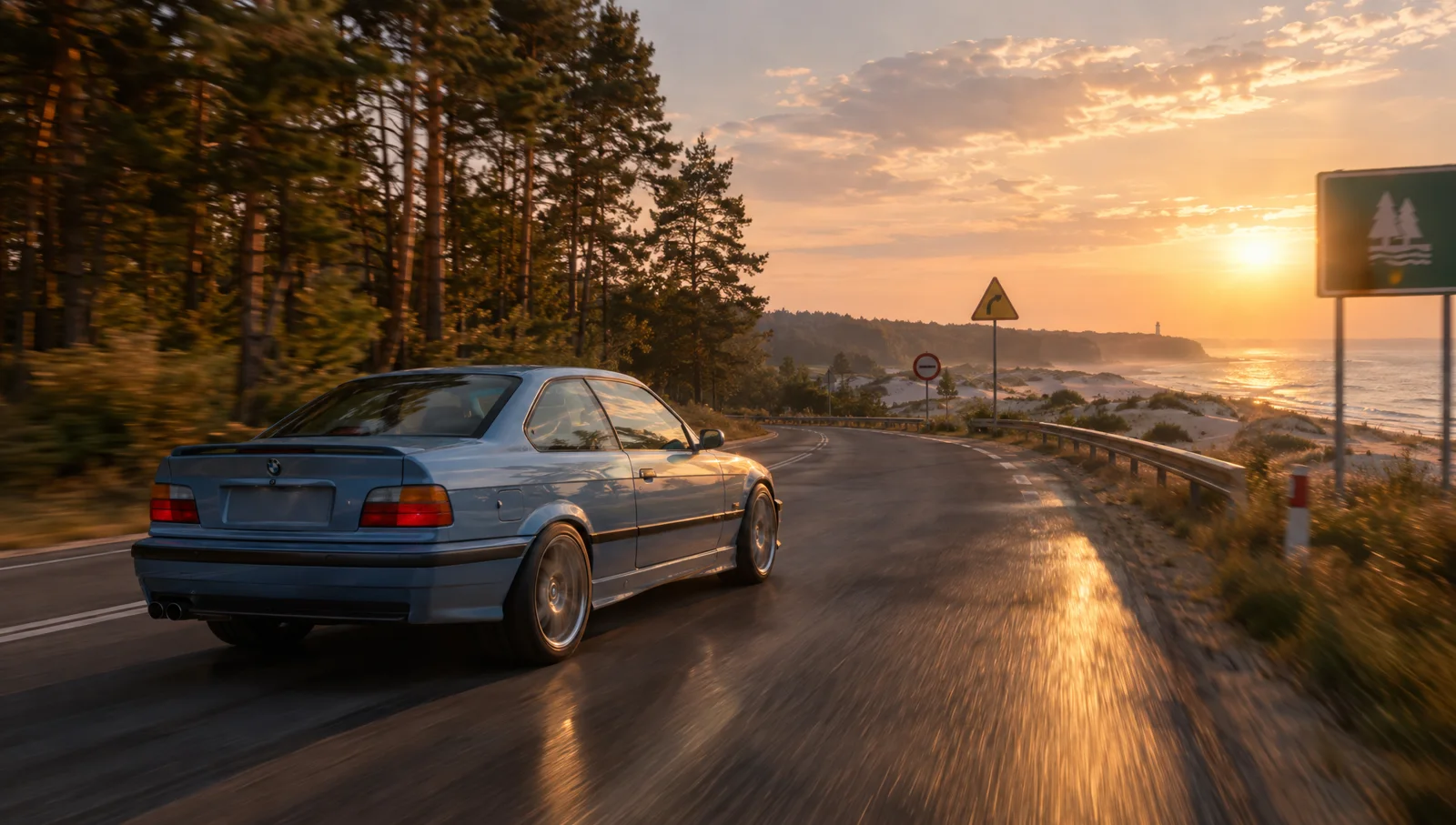
Rather than relying only on text descriptions, the workflow used an image-to-video setup. An initial source frame generated in GPT Image 2.5 featured a blue 1990s coupe on a coastal road lined with pine dunes at sunset. A strong starting frame reduces guesswork about the vehicle, ground textures, and lighting.
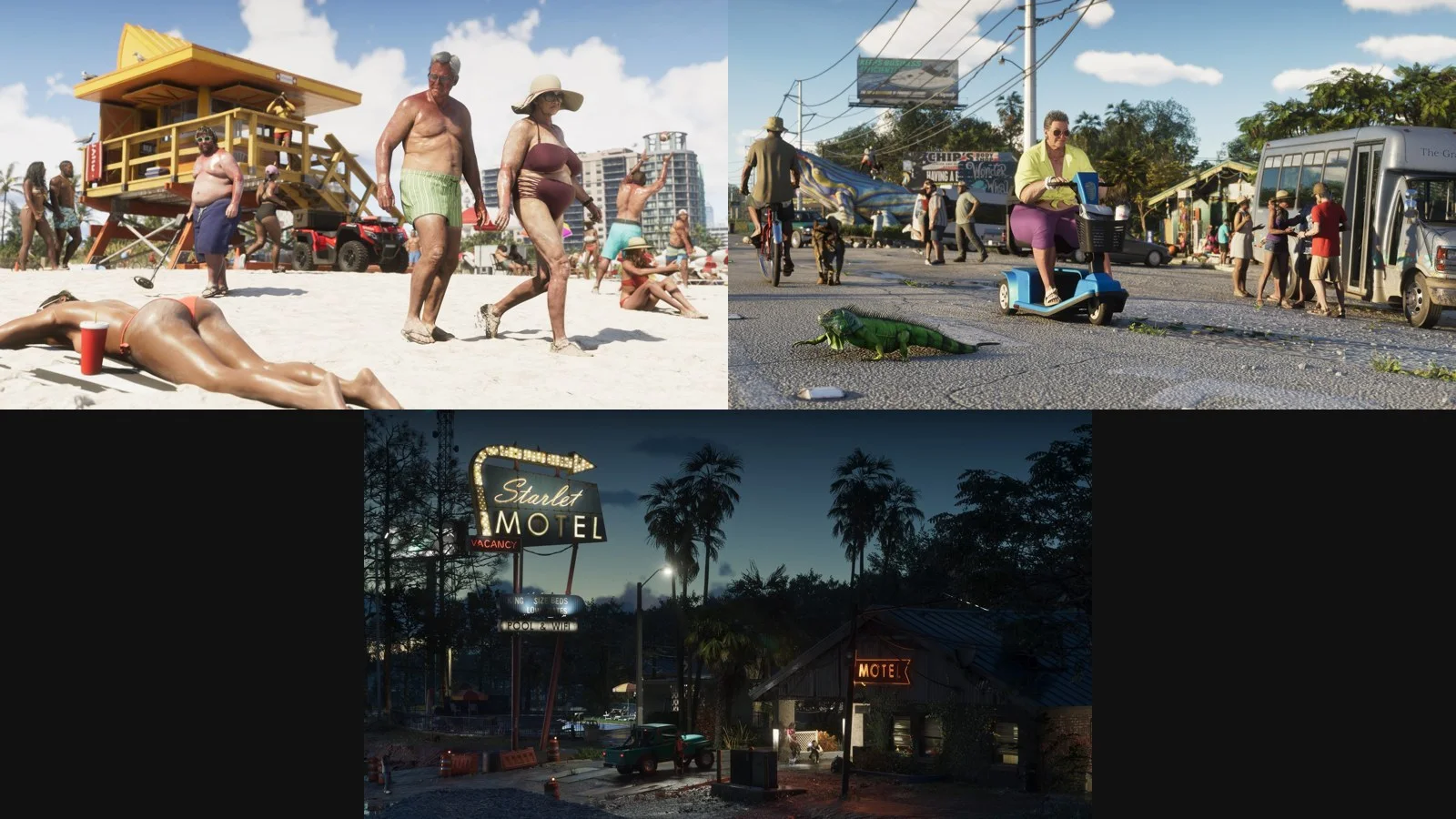
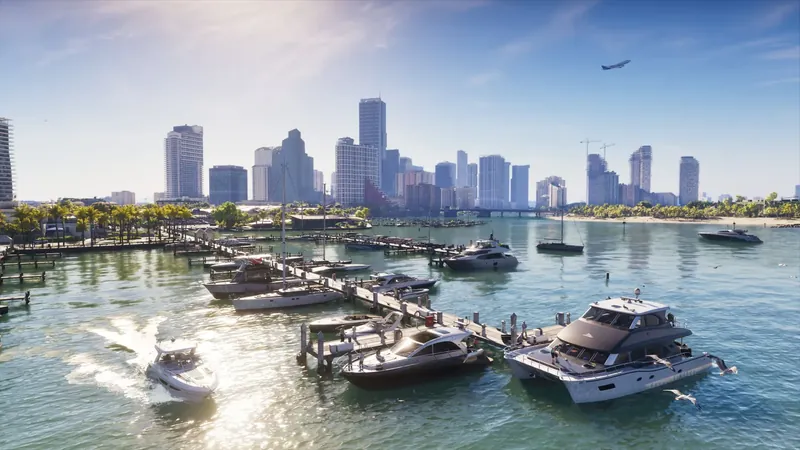
To match the game's color grading, three official press-kit screenshots showing Vice City, Leonida Keys, and Port Gellhorn were used as style references. The prompts instructed the tools to borrow only lighting, atmospheric haze, and color treatment, not locations or buildings.
Benchmarking Wan 3.0, Seedance 2.5, and MiniMax H3
Wan 3.0 took top marks overall. It was the only model to execute the full prompt: tracking tight to the car before lifting above the tree canopy to reveal the sea. It also matched the official press materials best, shifting the sky from amber into a stronger pink-and-magenta tone. The model lost track of the car near the end of the clip, but it remained the most cost-effective option.
Seedance 2.5 generated the sharpest image quality. Road reflections, tire blur, and vehicle suspension delivered a convincing game-engine look. However, the camera ignored the lift prompt and stayed behind the car. Its color profile also leaned closer to a standard dusk look, and it was several times more expensive per run than Wan 3.0.
MiniMax H3 struggled with consistency. It disregarded the initial coastal frame, substituting an overpass with American yellow lane markings. Midway through the clip, the blue vehicle changed into a different silver car, making the result unusable despite a clean ending landscape.
Workflow for Building a Cohesive GTA 6 Fan Trailer
A standard cinematic trailer usually consists of dozens of rapid cuts lasting one to three seconds rather than a single continuous take. Assembling a full sequence means treating each shot as its own prompt while keeping the same reference anchors across the timeline.
- Draft a shot list covering varied subjects such as speedboats, beachfront boardwalks, downtown skylines, and protagonist close-ups.
- Render a separate start frame for every shot in an image generator, using the same style tags at the end of each prompt.
- Attach the same two or three official Rockstar location screenshots as visual style references on every render to keep the lighting consistent across cuts.
- Produce low-resolution test clips first, then choose the most stable candidates before running full-resolution generations.
- Edit the footage to the musical tempo, cutting on beats and allowing rapid camera movements to transition naturally.
- Create logos and title cards in video editing software rather than relying on generated text inside the AI model.
Generation Rules and Brand Restrictions
Prompt structure needs to be precise to avoid generation issues. Avoid using trademarked game abbreviations or named character references in the text prompt, as some platforms restrict them. Focusing on environment descriptors, camera motion, and lens characteristics is usually safer.
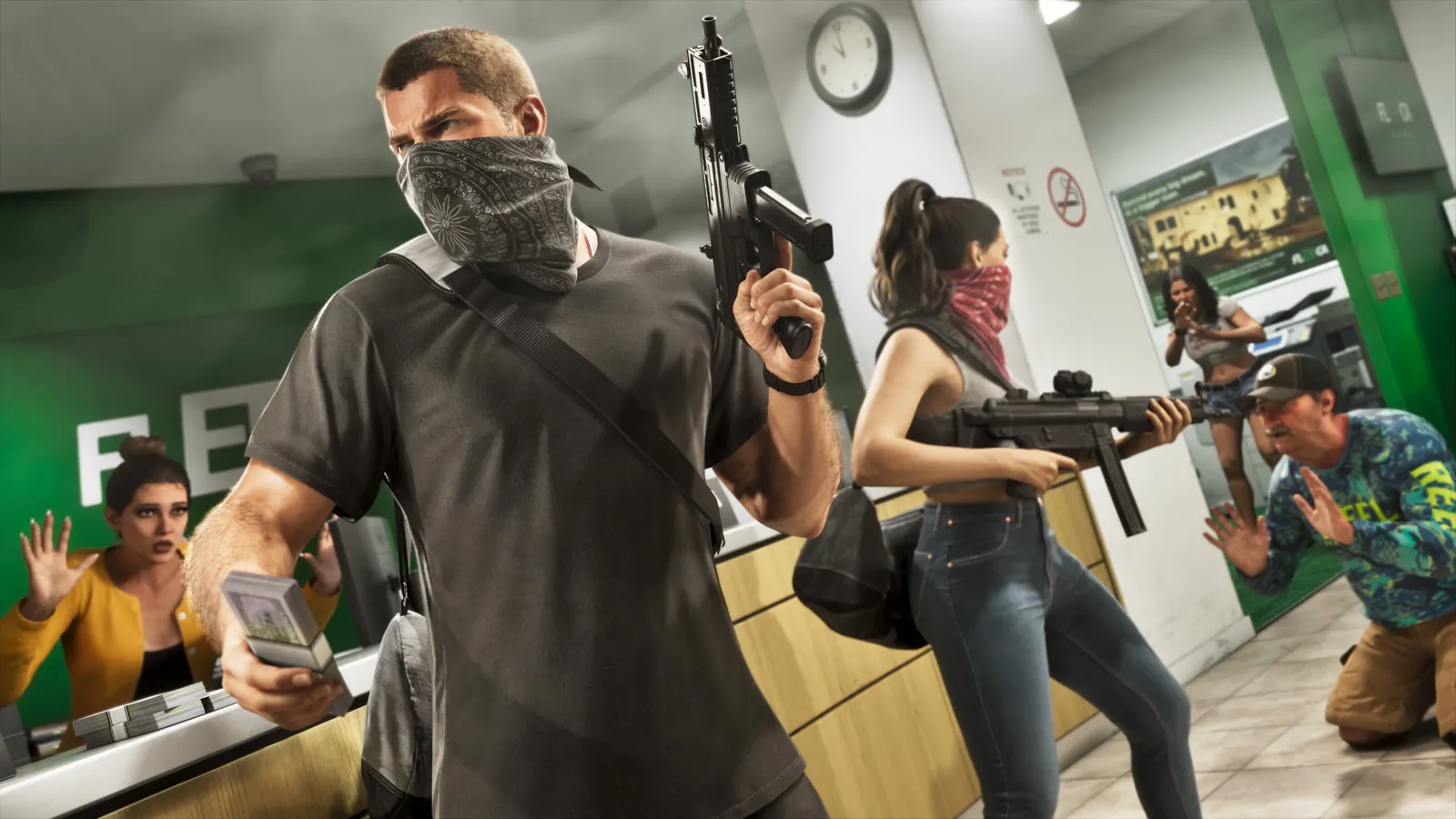
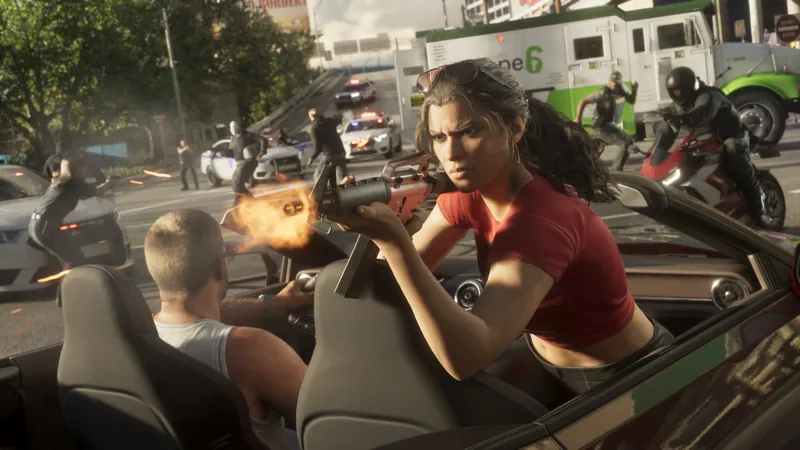
Character reference images should also be avoided when training the overall atmosphere. Uploading promotional art of Jason or Lucia can cause models to place their faces into unrelated background elements. Stick to human-free exterior environments for style references.
Finally, all generated assets should remain non-commercial fan projects. Using proprietary studio branding, trademarked typography, or direct commercial claims can create legal problems.
Frequently asked questions
Which AI video model best matched the GTA 6 visual style?
Wan 3.0 performed best by matching the pink and violet sky tones from Rockstar screenshots while successfully completing a continuous ascending camera move over the coastline at the lowest generation cost.
Why should official screenshots be used as style references?
Using official screenshots helps the AI borrow color palettes, sunlight reflections, and humid atmospheric haze without copying actual map geometry or buildings.
What caused MiniMax H3 to fail the test sequence?
MiniMax H3 ignored the supplied starting frame, replaced the coastal roadway with a generic overpass, and changed the blue test vehicle into a different silver car halfway through the shot.
Unofficial site, not affiliated with Rockstar Games or Take-Two Interactive.
Read next
 GTA 6 · GuideGTA 6 interactive map: search the Leonida atlasSearch Leonida locations, filter map layers and mark locations in your browser. Compare the coordinate atlas with the separate illustrated guide map.
 GTA 6 · GuideGTA 6 walkthrough: missions by chapterBrowse the GTA 6 story missions across five chapters. Find your current objective by its in-game title, starting with Lucia in the Prologue.
 GTA 6 · GuideGTA 6 review: Jason, Lucia and life beyond Vice CityThe slower opening in the Keys pays off in Leonida, where Jason and Lucia give Rockstar’s vast world a personal centre. The verdict is...