GTA 6 on Xbox: smoother Remote Play on a Windows PC
Stream GTA 6 from your Xbox through Edge, check the controller and try 2x frame generation on the PC with Lossless Scaling.
Contents 5
If a slow turn looks choppy on the PC, I start with the unmodified stream. This gives me a baseline before I ask Windows to draw extra frames. GTA 6 stays installed and runs on the Xbox Series X.
- Stream GTA 6 from your Xbox through Edge, check the controller and try 2x frame generation on the PC with Lossless Scaling.
- 2x adds intermediate images on the PC. The game and controller updates still follow the console's own timing.
- Switch off PC frame generation and repeat the same turn. If the delay persists, compare the network connection and the picture directly on the console.
Connect the Xbox to the PC
- Turn on your Xbox, open its settings and enable remote features. For the first test, put the console and PC on the same home network. Use Ethernet for the console if possible.
- Connect a compatible controller to the PC. In Edge open xbox.com/remoteplay, sign in with the Microsoft account for your console and select your Xbox. Launch the installed copy of GTA 6.
- Click inside the stream window and try the directions in the pause menu. If the game asks for a controller, press a button with the window focused. A controller already paired with a different device may need to be connected to the PC.
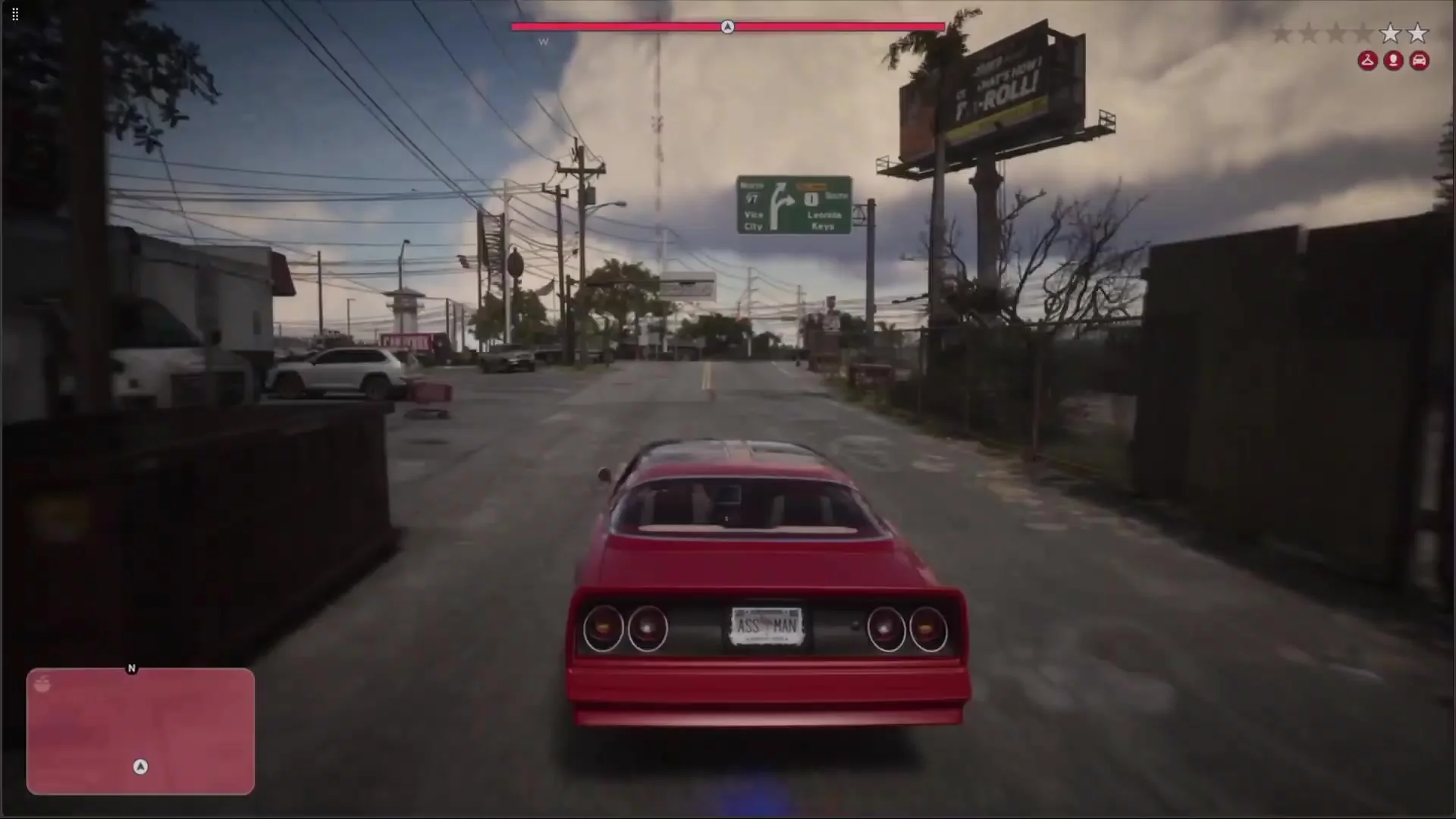
Drive past a row of buildings once before changing the picture settings. If the raw stream freezes or breaks into blocks, try Ethernet and pause other network transfers. An extra generated frame cannot recover a missing video packet.
Compare the picture with frame generation on and off
Keep the stream windowed or borderless. In Lossless Scaling on Windows, choose fixed frame generation at 2x. Leave resolution scaling off for this comparison. Activate it on the stream window, then repeat the same slow camera turn.
Compare moving edges, overhead wires and the minimap. A higher counter can include repeated or generated frames. If outlines split, the picture hitches or steering feels late, switch generation off and compare the same turn again.
More GTA 6 guides
- GTA 6 Settings Guide: Graphics, Controls, and Options
- GTA 6 on PS5 vs Xbox Series X: Graphics, FPS, and Controller Features
- GTA 6 not working? PS5 and Xbox troubleshooting
- Does GTA 6 Have First-Person View? FPP Camera Explained
- GTA 6 poradnik: spis treści, solucja, misje poboczne i trofea
Sources
Frequently asked questions
Do I need cloud gaming if I own the console?
Remote Play uses the copy installed on your Xbox. Sign in and select your own console in the browser.
Does 2x unlock a 60 fps mode on the console?
2x adds intermediate images on the PC. The game and controller updates still follow the console's own timing.
What should I change if the controls feel late?
Switch off PC frame generation and repeat the same turn. If the delay persists, compare the network connection and the picture directly on the console.
Unofficial site, not affiliated with Rockstar Games or Take-Two Interactive.
Read next
 GTA 6 · GuideGTA 6 interactive map: search the Leonida atlasSearch Leonida locations, filter map layers and mark locations in your browser. Compare the coordinate atlas with the separate illustrated guide map.
 GTA 6 · GuideGTA 6 walkthrough: missions by chapterBrowse the GTA 6 story missions across five chapters. Find your current objective by its in-game title, starting with Lucia in the Prologue.
 GTA 6 · GuideGTA 6 review: Jason, Lucia and life beyond Vice CityThe slower opening in the Keys pays off in Leonida, where Jason and Lucia give Rockstar’s vast world a personal centre. The verdict is...